Digg this story, record Pandora.com (and AOL Radio and Slacker) free for a month (starting 7/11/2008)
Yes, I am trying to buy your Digg.
I used to occasionally be able to get a story on Digg (either by submitting it myself or when someone else liked StationRipper and did it), but these days I'm finding it near impossible to get a story up, regardless if it's interesting or not. Used to be 15-20 votes would be enough to get bumped up, but now it's taking a LOT more, and from what I'm hearing it also takes a select group of people digging your story to have any chance of making the front page.
So yeah, this is a shameless attempt to get your Digg. I think this IS an interesting story to have people see, as this version allows you record some cool new stuff, in addition to the great Shoutcast stations it has always recorded.
So
Digg this, and you'll be able to use
the Pandora.com (and AOL Radio and Slacker) recording free for a month.
| You can Download this new version of StationRipper here (Beta 2.90F). This includes a free trial period until mid August (no registration needed) |
If you don't have it yet, you'll also need to get the latest version of .NET
Here's a quick demo of StationRipper recording Pandora:
This new plugin works very differently then the others, and may require some setup.
If you don't use a proxy, you should be able to bring StationRipper up and click on Pandora on the left side of the Portal - everything will be set up at that point. Otherwise, read the below. [NOTE: Slacker and AOL Radio are not on the Portal yet - just bring up IE or Firefox and do the below to get it working with these]
As of 7/8, this no longer works with Pandora. Sorry - there's now some extra steps and it's not automatic.
To get Pandora to work from inside of StationRipper:
-
Under View->Options, Sniffer tab, there are some new options. These should default correctly, but we recommend unchecking Auto Start Sniffer, and checking Auto Configure I, and entering a value of 0 for AutoSniffer Pause.
-
Click on Pandora on the left menu
-
Let it come up and start playing
-
Go to the View->Start StationSniffer menu in StationRipper.
-
Change the Pandora station (the Sniffer will record if you don't do this, but it won't have song names)
-
Songs will now record.
You can do a variation of this by checking "Auto Start Sniffer" and set a pause of 10000 or 15000. This will start Pandora, wait a bit, and then start the Sniffer. If you time it right, everything will just work.
We actually find the best results can be had by using Firefox along side StationRipper.
Manual Configuration
For the Sniffer to download correctly, you will need to visit Pandora.com, Slacker.com, or AOL Radio in your browser, after setting the browser up to use StationSniffer. To do this:
-
StationSniffer creates a proxy server that your browser will use to communicate with the sites Right now, StationRipper will only auto-configure Internet Explorer. If you just use IE and aren't recording Pandora, you don't need to manually configure a proxy, skip to just running the Sniffer.
-
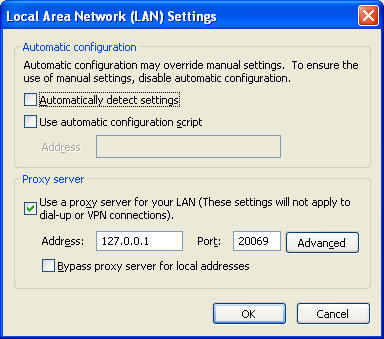
To configure IE by hand:
- Go to Tools->Internet Options
- Click on the "Connections" tab.
- Click on "LAN Settings"
- Check "Use a proxy server for your LAN"
- Enter in "127.0.0.1" for Address, and the "20069" for the Port. (NOTE: The default port can be changed in StationRipper by going to View->Options, and clicking on the Sniffer tab) -
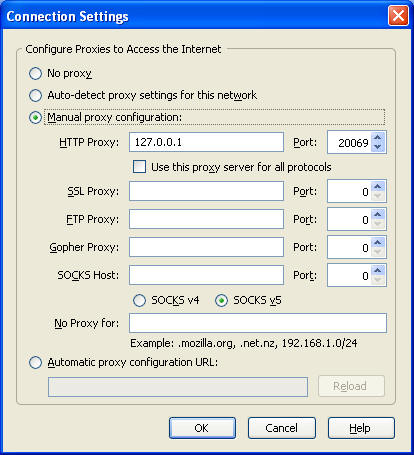
To Configure Firefox by hand:
- Go to Tools->Options.
- Click on the Advanced Tab.
- Click on the Network sub-tab.
- Click on the "Settings" button.
- Click on "Manual proxy configuration"
- Enter in "127.0.0.1" for HTTP Proxy:, and the "20069" for the Port. (NOTE: The default port can be changed in StationRipper by going to View->Options, and clicking on the Sniffer tab) -
NOTE: Once you have configured your browser to use the StationSniffer proxy, the Sniffer will need to be running for you to access the web. If you stop using the Sniffer and have manually configured a browser, just go back in and disable using a proxy.
-
Once you have your browser configured to use StationSniffer, you can start the Sniffer in two ways. On the StationRipper menu click on the View Menu and select "Start StationSniffer". You'll see a new station up on StationRipper, telling you that the Sniffer is ready to run. Otherwise, just click on the Pandora link on the left menu on the Portal and that will start the Sniffer.
-
Open your browser, and go to http://www.pandora.com, www.slacker.com, or http://music.aol.com/radioguide/bb (and click the Listen Now button) . Use these sites as you would normally. As each Song is played in in the browser, StationRipper will pick up the MP4 or MP3 music file and copy it to your music library. [NOTE: as of 7/8, you will need to go to pandora BEFORE starting the sniffer]
Helpful hits:
-
As soon as StationRipper shows that it has downloaded a song, you can go to the site and play the next song to let StationRipper download it.
-
If you open more than one instance of each site (e.g., two Pandora's in two IE windows), will not be able to accurately track song names - song names may be mixed up, or not available (So while using the Sniffer, please just have one copy of each site up). If you have two different browsers installed, you can configure one to use the Sniffer, and then do whatever you want in the other, like playing another station.
-
Auto-configuration currently only supports "simple proxy" in IE - if you are using one or more proxies you will need to configure this by hand.
-
The #1 problem we've seen is when users have a firewall or virus software that is blocking the Sniffer. Make sure to add StationSniffer.exe as a trusted app, or it may not be able to do its thing.
-
The sites will start playing a song before StationSniffer has it - and StationSniffer won't show any details until after the entire song is downloaded (so once a new song starts in the browser, wait a bit and it will show up in StationRipper).
-
If StationRipper looses track of the song name, just tell the site you are using to play a different Station. Sometimes skipping to the next song will also fix this.
-
If you want to use Firefox, just set up proxy settings like the above, then run StationRipper and go to View->Start StationSniffer.
-
Under IE, your proxy settings by default should look something like this:
-
Under Firefox, by default they would look something like this:
Here's a longer demo showing how to use the Sniffer: